Add your bowling scores to your livestreams
Do you want to stream your league nights, tournaments or practice sessions with a live scoresheet that you control? Advanced Bowling Tracker gives you a browser source link that works with popular streaming software to embed your live scoresheet on the stream and updates as you record each shot in the app.
What you get for your streams
A transparent web page that you can add to OBS, Streamlabs, or any streaming software with a browser source option. It will show your scoresheet with configurable options: pinfall, max score, name, location and a QR code.
While you are not live, the page renders nothing. Your stream layout stays clean between sessions and you never have to hide or show the source by hand.
What you need to get started
- Advanced Bowling Tracker with a Pro subscription. The overlay is a Pro feature, and it is the only part of live sharing that is.
- Streaming software with a browser source: OBS Studio, Streamlabs Desktop, XSplit, or the browser source in Twitch Studio all work.
- Your phone or tablet and optionally your Apple Watch to record your scores as you go.
Setting up the Stream overlay
You set this up once. The link never changes unless you reset it.
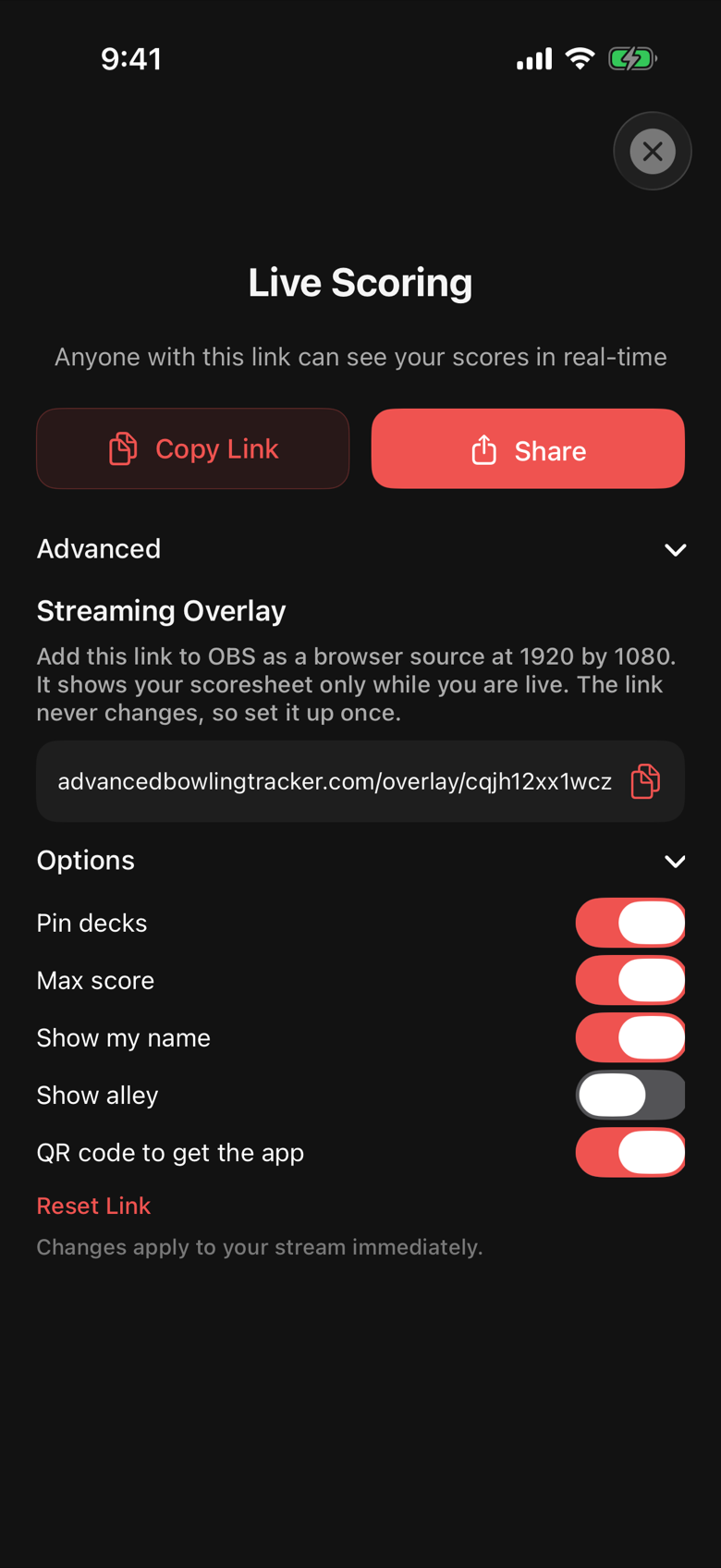
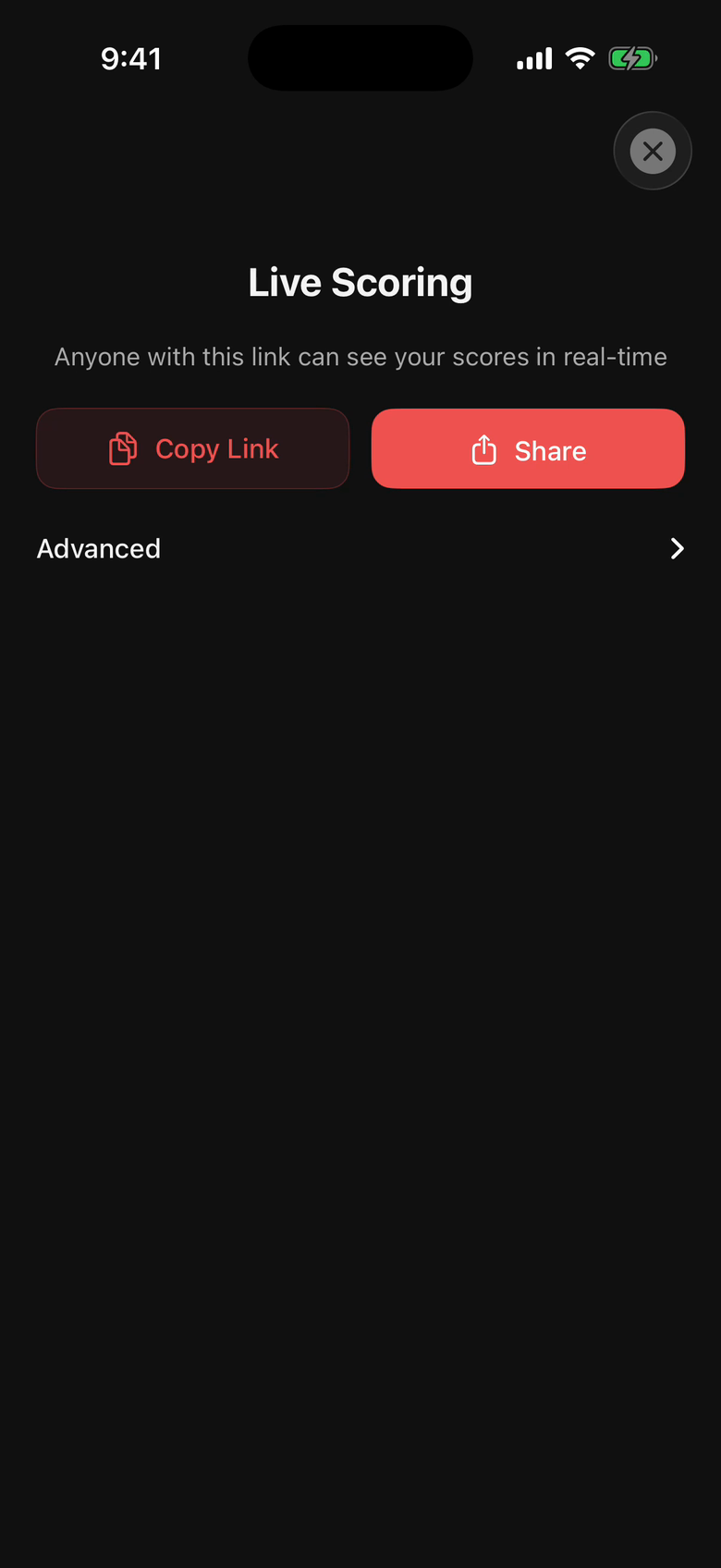
- Start a session in the app and tap the antenna icon in the top right of the scoring screen. This opens Live Scoring.
- Open Advanced at the bottom of the sheet, then Streaming Overlay. Tap the copy button next to your overlay link. It should look like advancedbowlingtracker.com/overlay/ followed by your private code.
- If you are using OBS, add a Browser source. Paste the link as the URL. Set the width to 1920 and the height to 1080. Leave the custom CSS alone.
- Position it. The scoresheet strip sits along the bottom of the 1920 by 1080 canvas by default. Drag the source where you want it and scale it if your canvas is a different size.
- Start bowling. As you record frames on your phone or watch, the overlay updates nearly in real time. When you start a new game, the scoresheet clears and starts filling in again from frame one. When you end the session, the overlay goes blank.
Configuring Streaming Options
You can configure the scoresheet options within the live sharing menu. Changes apply to the stream immediately, so you can tweak and adjust to your preferences. Options include:
- Pin decks: the pins left standing after each first ball, drawn under each frame.
- Max score: Show or hide the max score possible for each game.
- Your name: Show or hide your name as you've set it in the app.
- Show alley: Show or hide your location if you've set it. This is disabled by default.
- QR code: Show or hide a promotional QR code for installing Advanced Bowling Tracker if you want to help us out.
Reset Link generates a new private code and deletes the old one. Use it if you have shown the link on stream by accident or shared a screen with it visible.
Streaming tips
Keep the phone or tablet nearby and record after each shot or frame. Viewers might notice a scoresheet that lags two frames more than they notice one that is a few seconds late.
If you score from your Apple Watch, the Scoresheet will update, so your phone can stay in your pocket.
Match the overlay to your camera. A phone on a tripod behind the bowler at chest height (the same setup Rev Check asks for) gets the whole lane in frame with room for the strip along the bottom.
Privacy
The overlay page is public to anyone who has the link, which is why the link is a long private code and why Show alley starts off. It shows the scoresheet only while a live session is running. The QR code is optional. Nothing about your account, your history or your location is on the page beyond what you turn on.
Your session is also visible in the app to whoever your live sharing setting allows (all followers, friends only, or no one). That setting lives in Settings under Share my live scores and is separate from the overlay.
FAQ
Does this work with Streamlabs?
Yes. It works with any software with browser source support: OBS Studio, Streamlabs Desktop, XSplit, Twitch Studio, and most mobile streaming apps that accept a web overlay URL.
What size should the browser source be?
1920 by 1080. The page is drawn for that canvas, and the strip is laid out along the bottom. If your canvas is 1280 by 720, add it at 1920 by 1080 anyway and scale the source down to fit.
Why is the overlay blank?
You are likely not in a live bowling session yet or your session has ended. Start a new session in the app and record a test shot. If it stays blank during a session, check that the phone has a connection; the overlay reads the same live data your followers see.
Can viewers change anything?
No. The page is read only. It has no controls and no way to reach your account.
Can I use it for a recorded video instead?
For recordings, the Frame Stills export is likely a better fit. It gives you transparent images of the scoresheet after every frame that you can drop into an editor.