How to add your frame by frame bowling scores to a video
Bowling videos are better and easier to follow with scoresheets, but building the scoresheets by hand can be tedious and don't always look very good. Advanced Bowling Tracker can make it easy for you with instant exports of each frame or shot that you can quickly drop into your video.
What you get
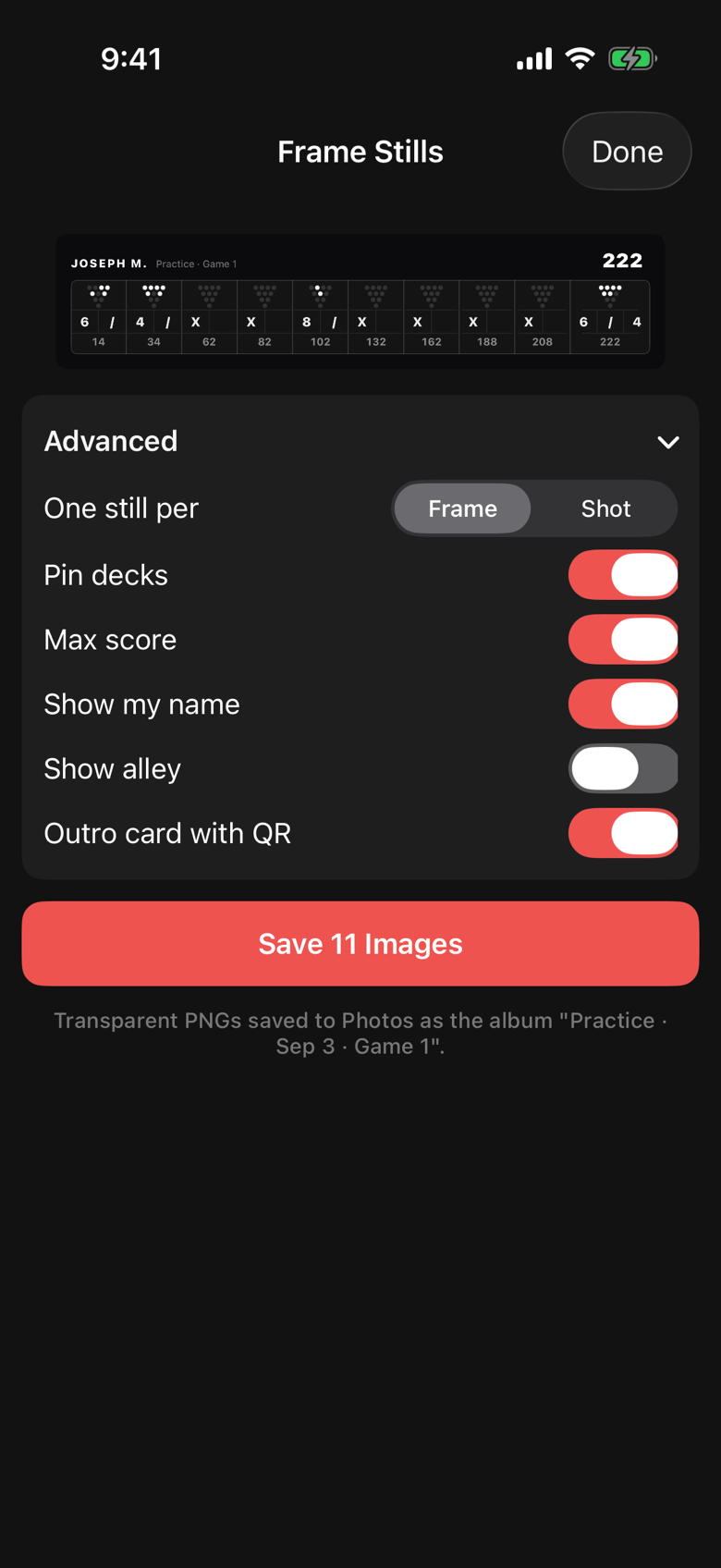
A set of PNG files with transparent backgrounds, one per frame or shot, saved to your Photos album. Each image is the running scoresheet marking your game progress as you go.
You can adjust the display with options as well:
- Pin decks: the pins left standing after each first ball, drawn under each frame.
- Max score: Show or hide the max score possible for each game.
- Your name: Show or hide your name as you've set it in the app.
- Show alley: Show or hide your location if you've set it. This is disabled by default.
- QR code: Show or hide a promotional QR code for installing Advanced Bowling Tracker if you want to help us out.
Because the background is transparent, the strip sits on top of your video with the footage showing through. Because there is one image per frame, you place each one over the shot it belongs to and the sheet appears to fill in as the game goes on.
What you need to get started
- Advanced Bowling Tracker with a Pro subscription: Frame Stills is a Pro feature.
- A completed game recorded frame by frame in the app. Quick Score games have no frame detail, so there is nothing to export.
- Any video editor that layers images: iMovie, CapCut, Final Cut Pro, Premiere Pro, DaVinci Resolve. Phone editors work too.
How to export the Scoresheet images
- During a game, tap the share icon at the top of the scoring screen and choose Frame Stills.
- After a session, the Session Complete screen has the same option, and it exports frame stills for every game in the session at once.
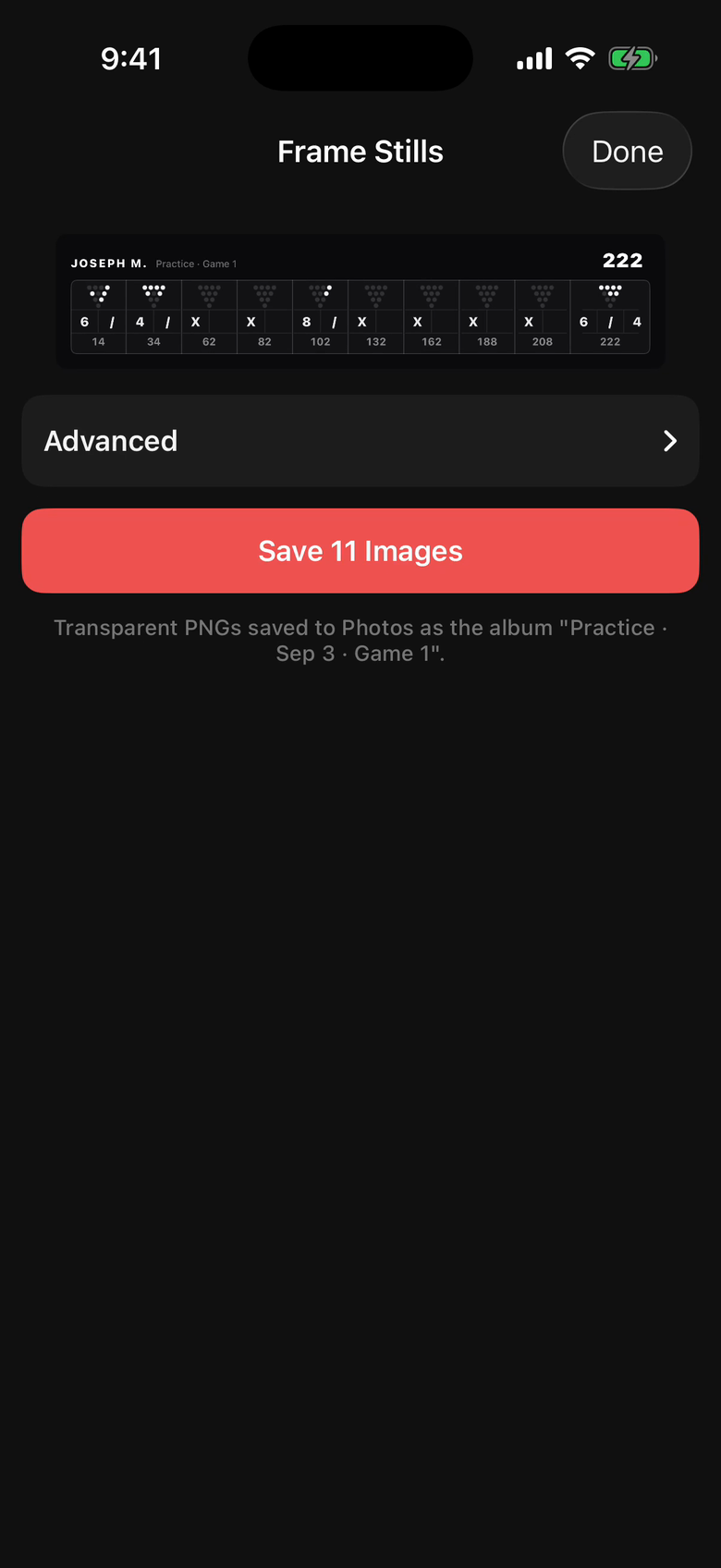
- Check the preview. The card at the top shows the last frame the way it will export.
- Open Advanced if you want to change anything. Toggle pin decks, max score, your name, the alley, and the outro card.
- Tap Save and the stills get saved to your Photos.
- Drop them in your editor. AirDrop the album to a Mac, or import straight from Photos in a phone editor. The file names carry the date, game and frame number, so they should sort in order.
Laying them over your footage
The workflow should generally be the same in any editor. Put your footage on the main track. Put the stills on the track above it. Trim each still so they line up with your games.
A few specifics:
- iMovie on iPhone: tap the plus, choose the still from Photos, then tap the overlay button and pick Picture in Picture. Resize it to a strip and drag it to the bottom. Repeat per frame. It is repetitive, but it still beats typing scores.
- CapCut: add the still as an Overlay, pin it to the bottom, set the duration to the frame's length. CapCut remembers the position, so later stills land in the same place.
- Final Cut, Premiere, Resolve: drop the stills on a connected track, set each duration, and use one transform for all of them. Because the stills are the same size, a copied transform lines them all up.
The images render 800 points wide at high resolution, which is sharp on a 1080p video and fine on 4K when scaled to a strip.
FAQ
Do I have to be Pro?
Yes. Frame Stills and the streaming overlay are the two creator tools in Pro. You can try out the Pro tier for 1 month for free, and it's only $10 a year or $2 a month.
Can I export a game I bowled last month?
Not yet. Frame Stills is available during the game and on the Session Complete screen right after it, so export before you leave that screen.
Why are the images transparent?
So they work over any footage. If you want a background, add a shape or a color matte under the still in your editor.
Can I get the stills as a video instead?
Not yet. The export is images so you control where each one lands in your own edit.
What about a live stream?
Use the streaming overlay instead. It updates the scoresheet on your stream as you score.